
Welcome to XOLogic!
The purpose of our software is simple - help wholesale distributors sell more online, in-store and in-field. This article will give you a quick snapshot of how our platform works. Please visit our full library of videos and articles at library.xologic.com to gain a more in-depth understanding of how much easier we can make your life.
1 - To start off, go to your back-end home page. Log in with your username, and your password. If you forget either of these things, click on Forgot your password? under the sign in button, or contact your account manager at 866-684-4134.
2 - Your backend website will load, looking like this, with your website's catalog page loaded in the center, and our tools wrapped around it. You’ll notice a toolbar on the left and a header up top.
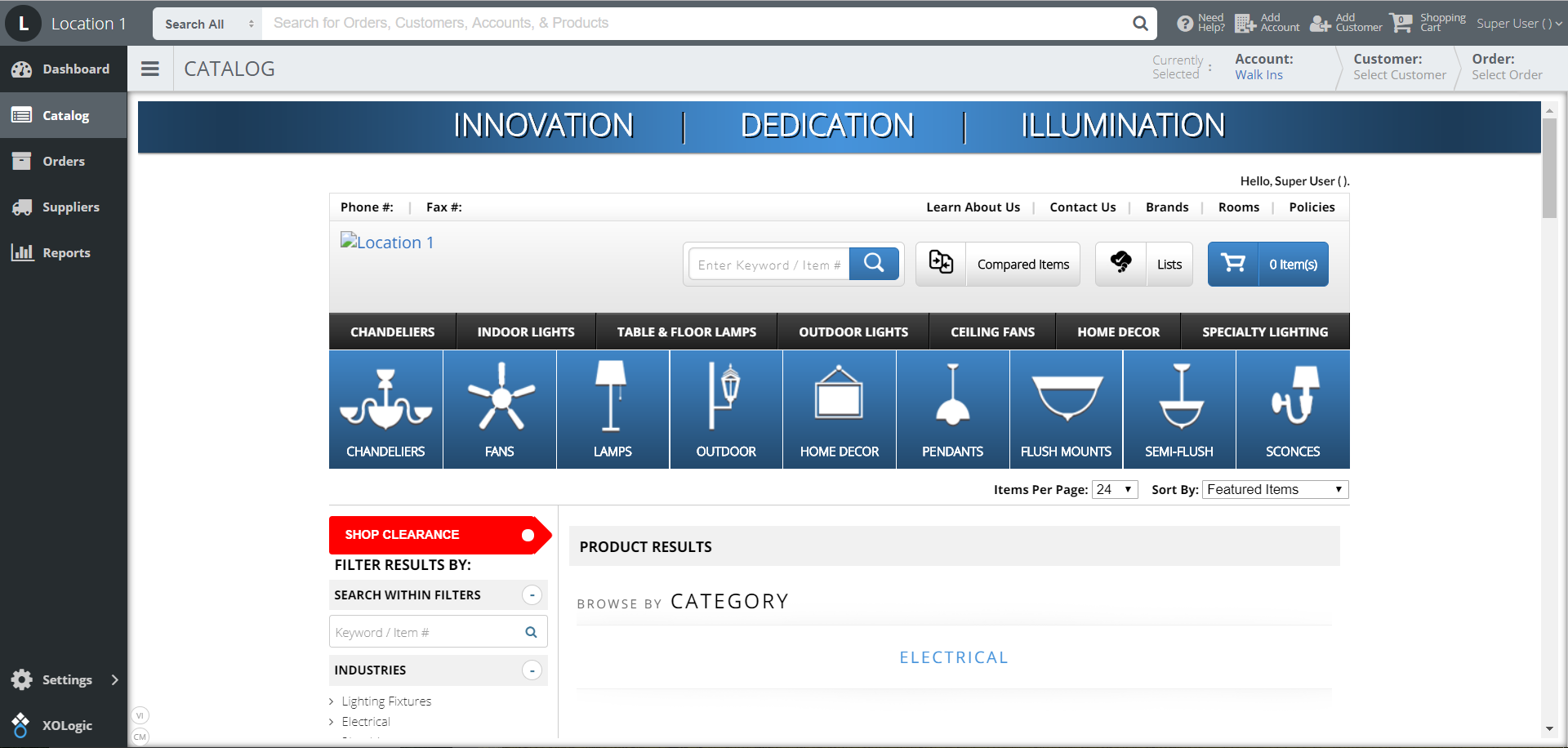
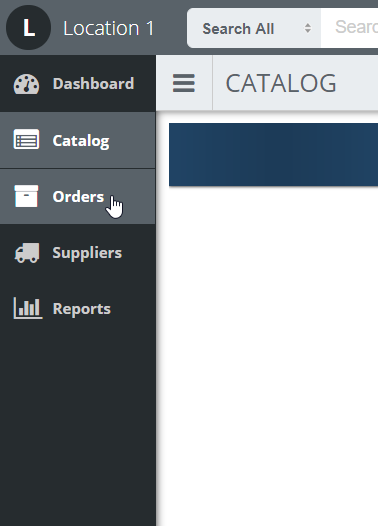
3 - The left sidebar contains features and tools for your use. The Dashboard, Catalog, Orders, Suppliers, and Reports are all readily available at the top of the sidebar.
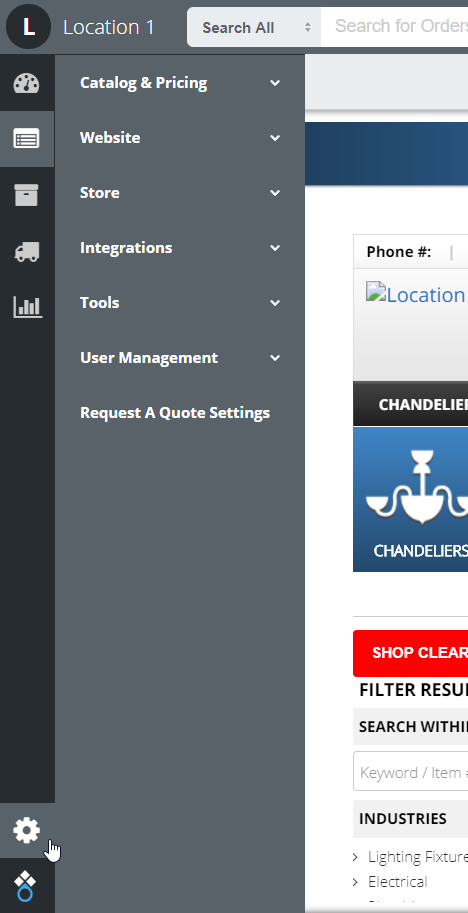
4 - In the bottom left you’ll find the settings tab, which shows you the rest of the tools. Catalog and Pricing, Website, Store, Integrations, Tools and User Management and Request A Quote Settings.
5 - In the top right you can add accounts and customers, and even fill your shopping cart. And don't forget your "Need Help?" button, which will take you to the entire XOLogic Library.
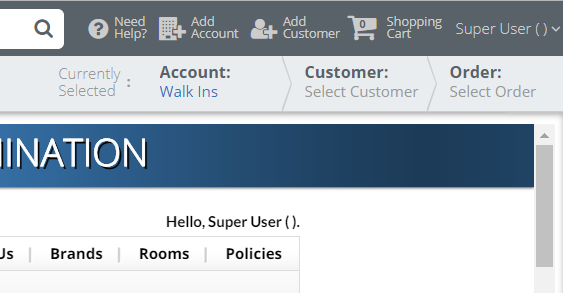
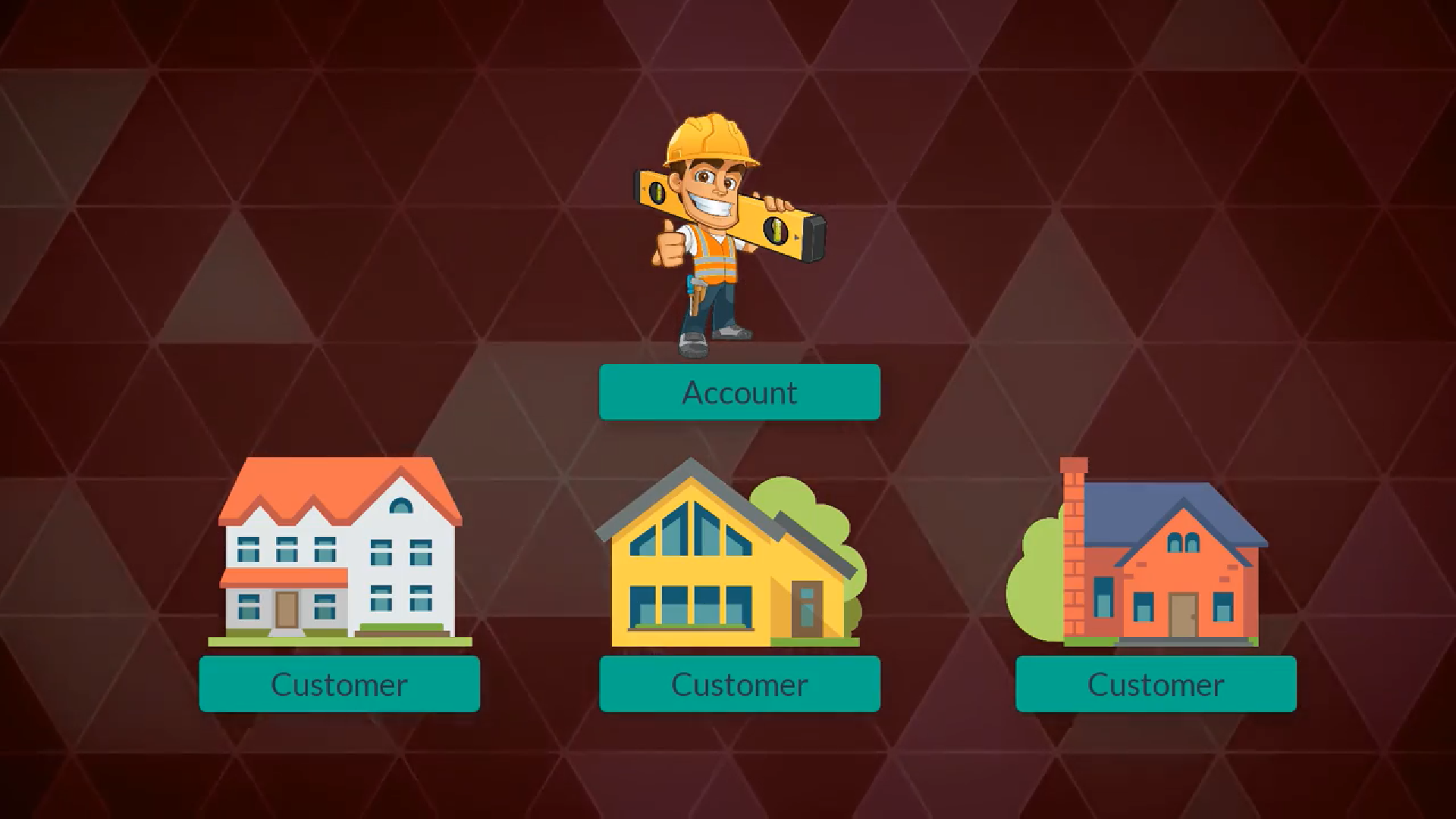
6 - The difference between an account and a customer is probably best with an example. Let's say you've got Bob. Bob's a builder. Bob is building homes for three different people. In this situation, Bob would be the account holder, and the people whose homes he's building would be the customers; each with the ability to add or remove things from their individual wish lists and shopping carts.
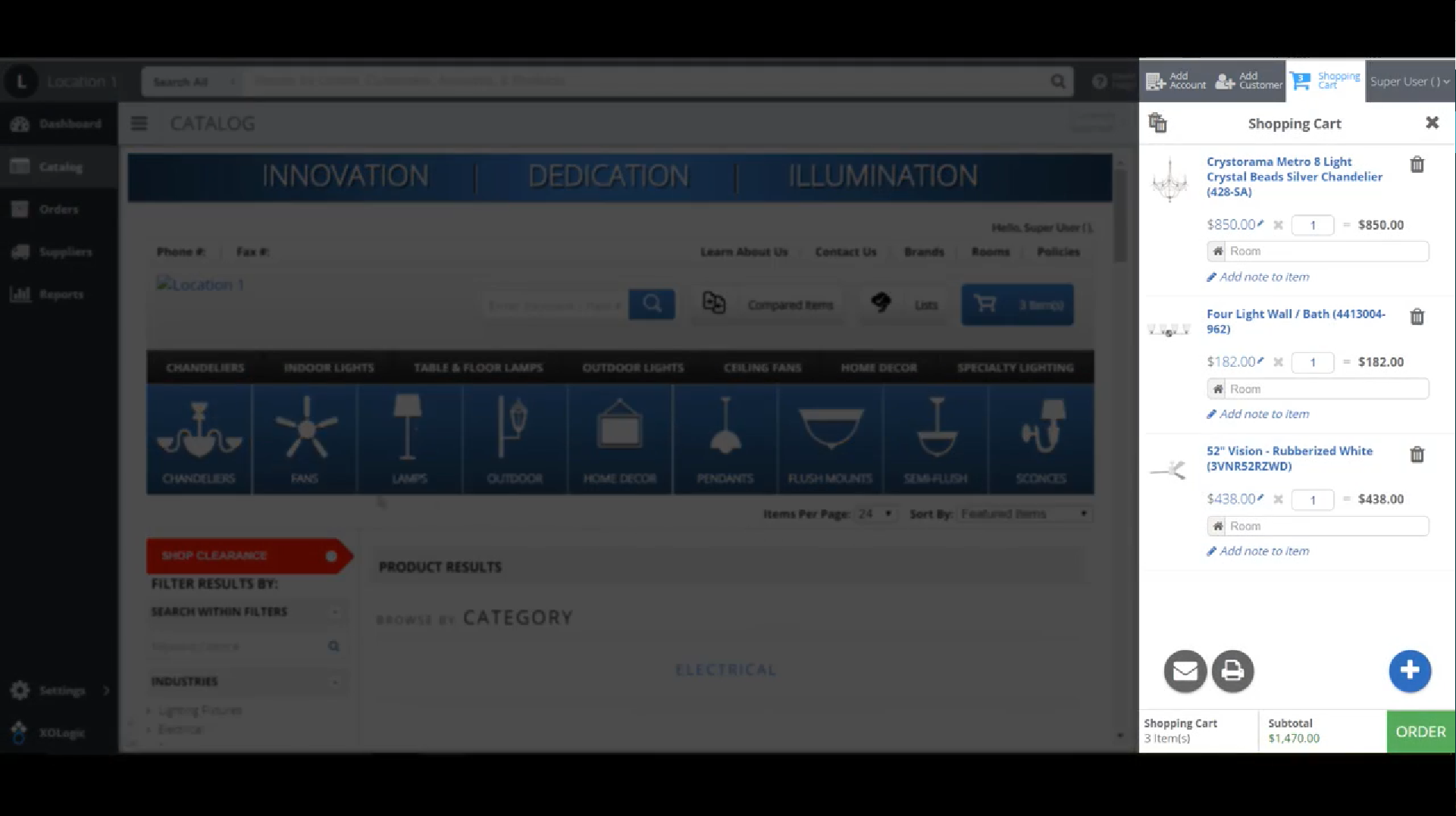
7 - When you edit the information in the customer, account or shopping cart tabs, a sidebar will pop out from the right-hand side. This will allow you to keep searching your catalog as you edit this information. This is especially useful when adding things to your cart, or removing them from it.
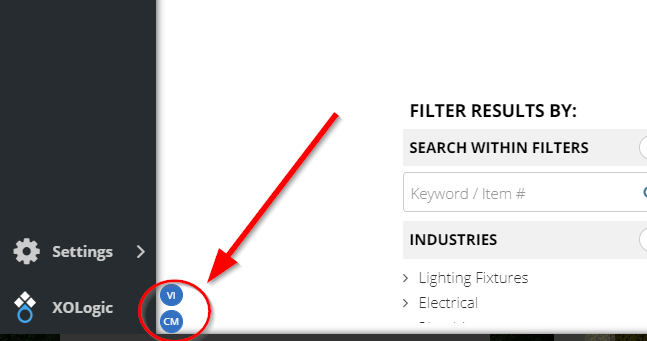
7 - Don’t forget the Vendor Information and Cost Margin Information buttons - use these to turn on or off the visibility of this info. They are in the bottom left-hand corner.
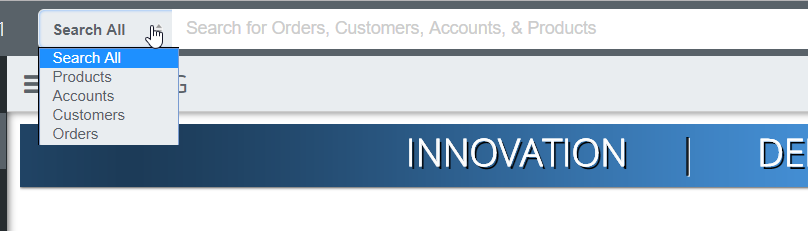
8 - The search bar in the top middle is a great tool - you can search for products, accounts, customers, orders - everything! It even has a drop-down menu so you can be more specific in your search.
8 - Bonus-fact for ya: The backend of our website is responsive. Meaning you can squish your screen down and still use it! It also means it is tablet and mobile friendly. Just click the menu bar up top to get those items back on the screen.
* Don’t forget to check out our Knowledge Library! Become a champion of XOLogic and see how much time and energy you can save!
Comments
0 comments
Please sign in to leave a comment.