
If you haven't set up a Google Search Console account for your domain yet, please refer to and complete the detailed steps listed in this prerequisite article: How to Set Up Google Search Console
Have you ever been in a position where an item has been removed from your catalog and you (or your customers) are still able to find a URL to that item via Google search?
There's no need to worry, this just means Google hasn't crawled the pages yet to figure out that the item was removed.
With that being said, this article provides you with step-by-step instructions on how to politely ask Google to crawl your website for updated content.
How to Trigger a Crawl on Your Website Using Google Search Console
- Log in to Google Search Console
- Go to the Fetch as Google section (Crawl > Fetch as Google)
- You will want to index from the main page onwards, so just leave the URL blank, leave Desktop selected in the dropdown menu, and click the Fetch And Render button.
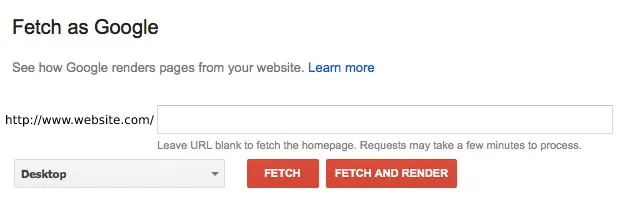
- This will need to be done for both Desktop and Mobile. To do this, now select Mobile from the dropdown menu, and click the Fetch And Render button again.
- You should see the screen below, displaying both Desktop and Mobile Googlebot render requested.
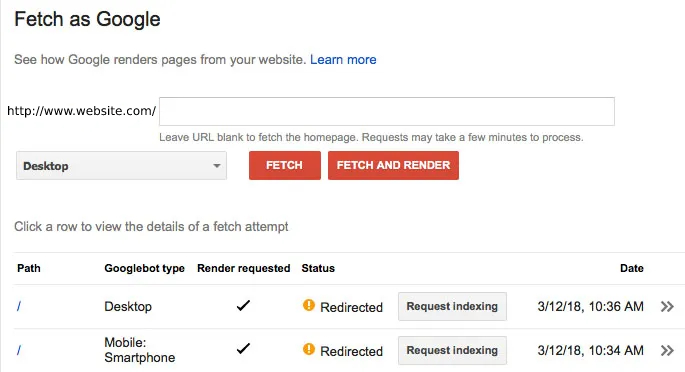
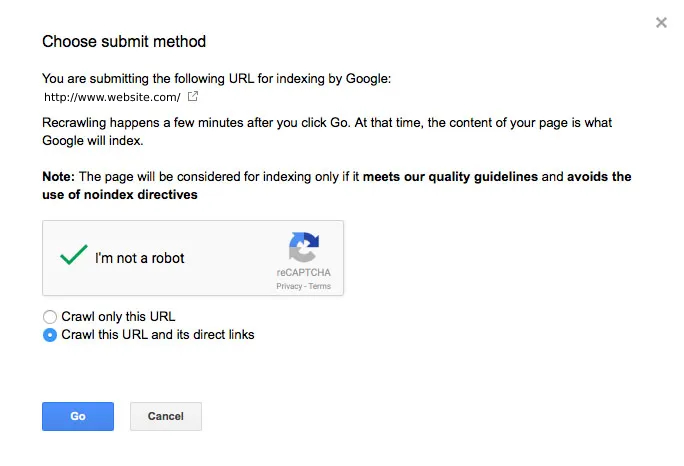
- Click the Request indexing button, and the screen below will pop-up.
- Click the reCAPTCHA checkbox challenge, and select the option "Crawl this URL and its direct links", and click Go.
8. Repeat the same steps for the Mobile Googlebot.
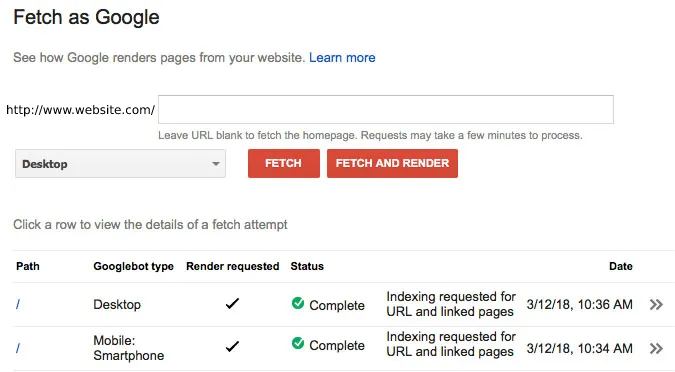
9. Once completed, you should see that the "Request Indexing" buttons have been replaced with the text “Indexing requested for URL and linked pages“ for both Desktop and Mobile.
That’s it!
Googlebots will soon crawl your website and any invalid URLs will be removed from Google's search results.
One great way to automatically inform Google about content changes on your website is via an XML sitemap. If you would like instructions on how to submit an XML sitemap to Google via Google Search Console, please see:
How to Submit an XML Sitemap to Google
Comments
0 comments
Please sign in to leave a comment.