
If you haven't set up a Google Search Console account for your domain yet, please refer to and complete the detailed steps listed in this prerequisite article: How to Set Up Google Search Console
An important task you will need to complete if you want Google to crawl and rank your website is submitting a sitemap. This sitemap directly helps Googlebots index your website, understand your website’s relevance and determine your website’s ranking.
In this article, you will find step-by-step instructions on how to submit an XML sitemap to Google via Google Search Console.
What is a Sitemap?
Sitemaps detail the structure and webpages of your site in a format Google’s bots can understand. You can use your sitemap to indicate content hubs and internal links between pages.
A sitemap guides the crawl bots through your site, showing them the most important pages. Remember, you want Google’s bots to crawl your site, so the search engine understands which search terms your website is most relevant for.
There are 2 common sitemap formats:
- XML: Only search engine bots can read this format.
- HTML: Bots and users can both browse these sitemaps.
XML sitemaps indicate the most important pages on your website to Google and can tell the search engine when your website has been updated.
Regularly updating your website’s content with dynamic content like blog posts or a customer testimonial page can help boost your ranking. Updated content signals to Google that your website may be useful and relevant.
HTML sitemaps are made available on the website via a webpage. They often appear as a collection of links to important pages on your site. They'll help for attributing PageRank throughout your website, as they link to pages with fewer internal links.
How to Submit an XML Sitemap to Google
Step 1: Sign in to your Google Search Console Account: 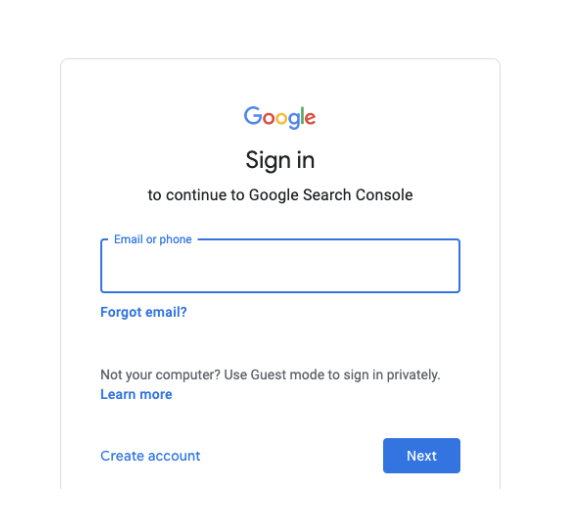
Step 2: Select your website/property: 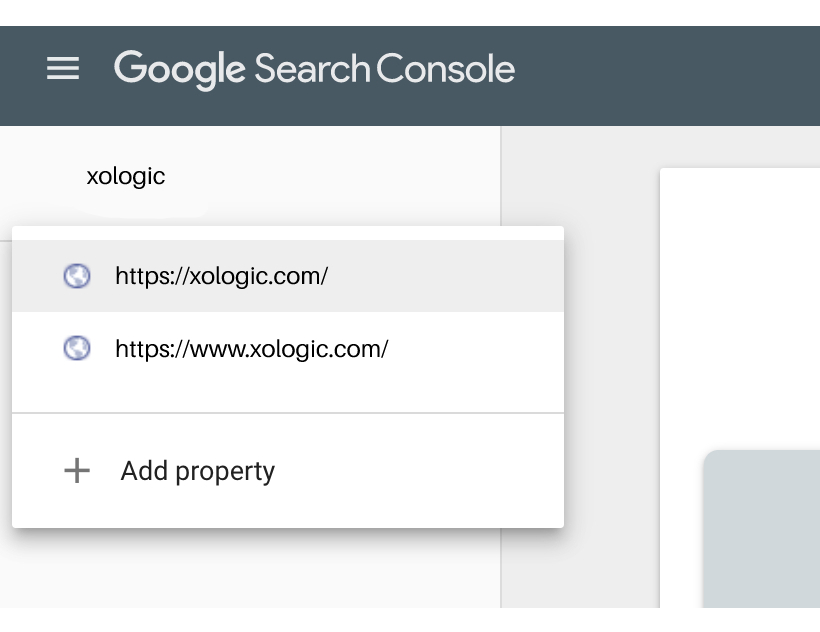
Step 3: Select "Sitemaps": 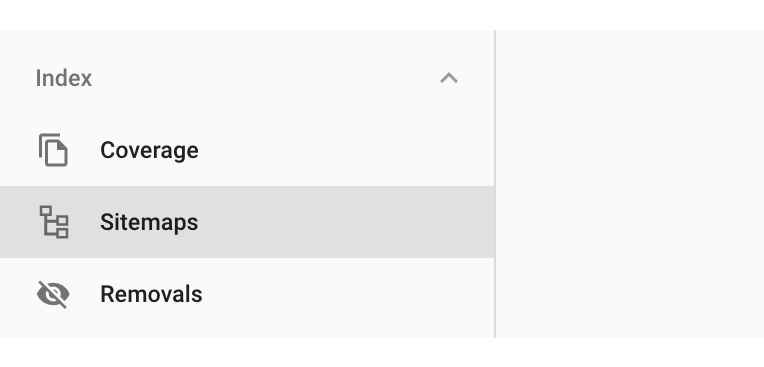
Step 4: Remove any invalid or outdated sitemaps: 
Step 5: Add a new sitemap and click "Submit":

You've now successfully submitted your sitemap to Google!
Comments
0 comments
Please sign in to leave a comment.