
If you have our data feed service and are working with Lighting One, Madwire, and Big Commerce use this article to learn how you can update the pricing that is located in the "Web Price" field of your feed.
- This field is controlled by our default Web Orders account.
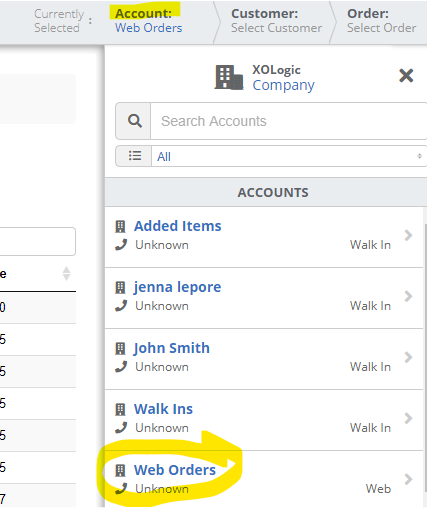
- Click on the Web Orders account and then click on the Web Orders dropdown. Once you do this you will get a pop up warning you that this is a default account. That tells you that you are on the right account and we do want to adjust settings in here.
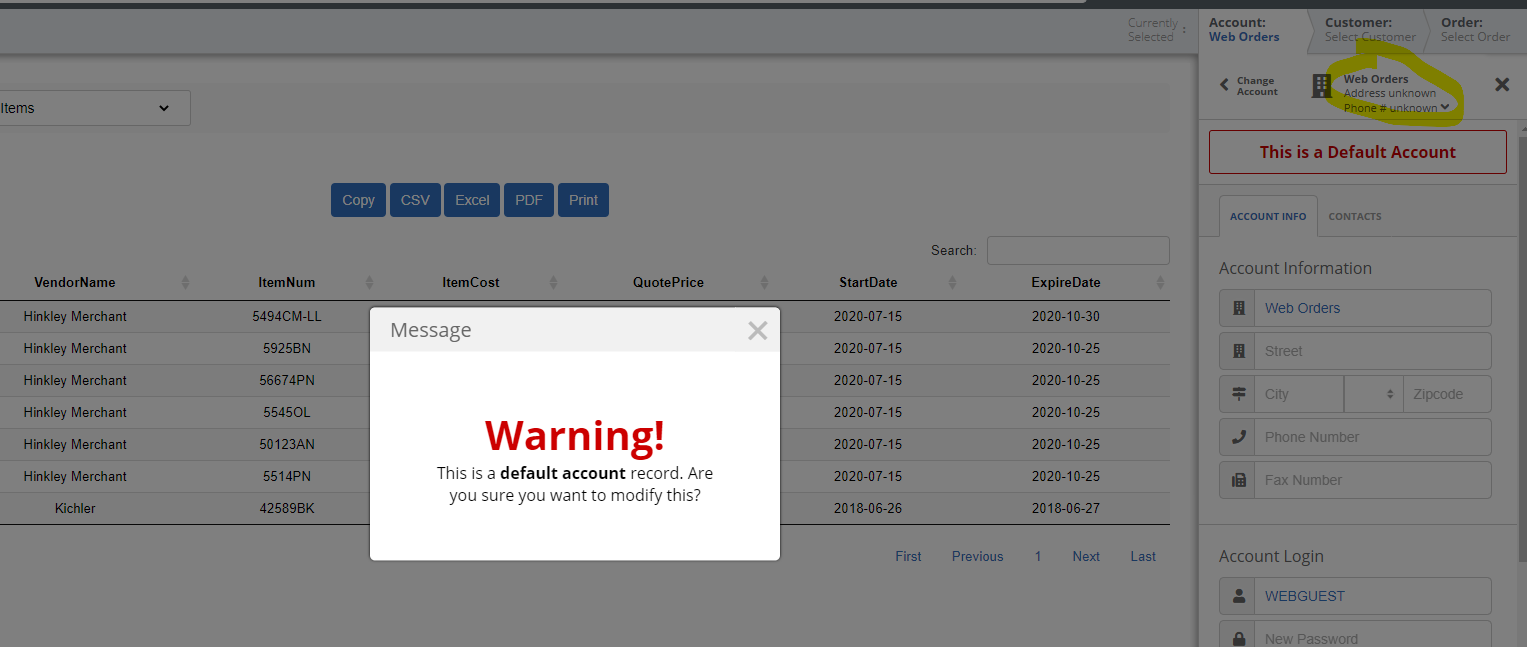
- Once in the drop down navigate to the Tier Markup section.
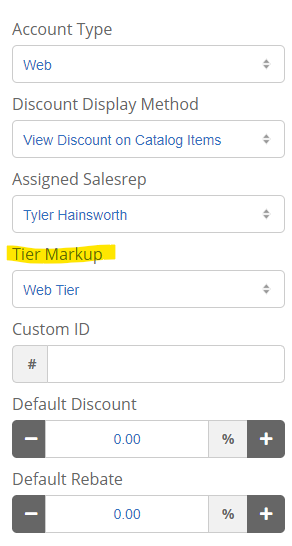
- The Tier Markup drop down selections are controlled by our mark up section.
Mark Up Section
- To get to the Mark up section, navigate to Settings -> Catalog and Pricing -> Markups
- Click Edit on Web Tier and it should take you to a page like this.
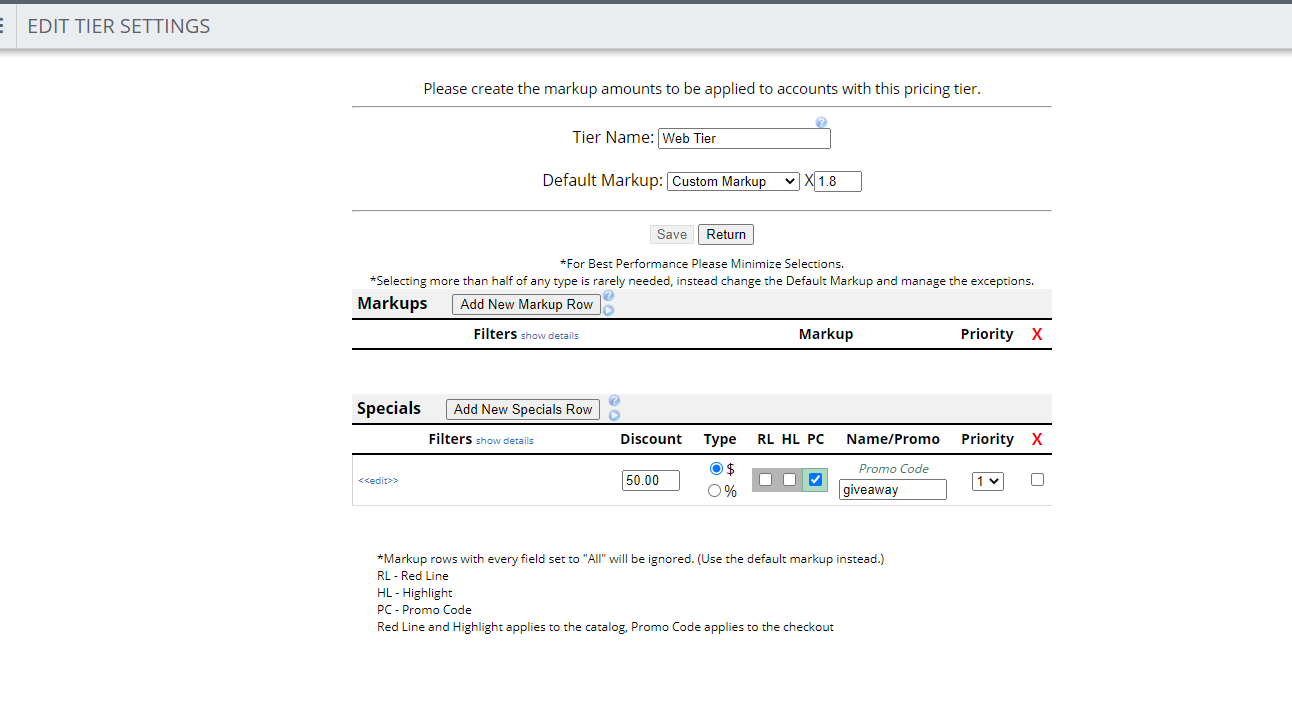
- This is where you can manipulate the pricing that will effect your web price field on your feed. To learn more on how to make changes here, visit this article. https://xologic.zendesk.com/hc/en-us/articles/360029262411-How-To-Create-Markups-
- Once your pricing has been set up, come back to the Web Orders account and Tier Mark up section.
Here, make sure that the Tier Mark up is set on "Web Tier" or the web tier that you just adjusted the pricing for. This will ensure that your web price displays the correct price on your feed.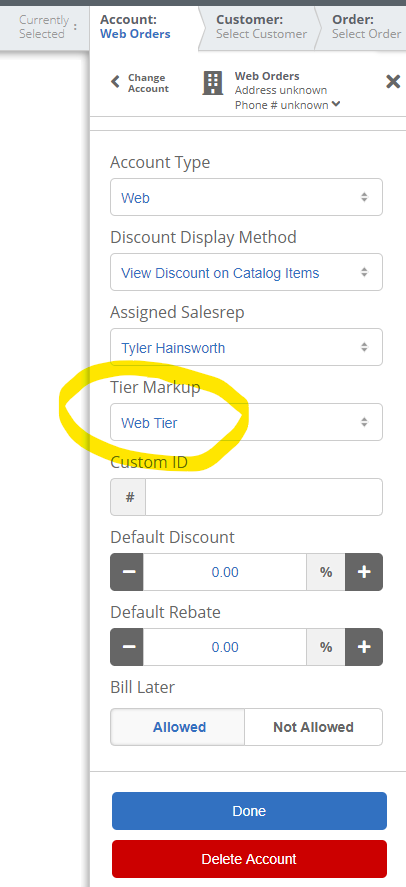
Comments
0 comments
Please sign in to leave a comment.