
The XOLogic platform allows customers the ability to install Google Analytics on their website so that they can track and record activity that happens on their website.
The customer should be providing to you the Google Analytics html script and a UA code. We need both of them.
Below is a sample of what the Google Analytics code should look like.
<!-- Global site tag (gtag.js) - Google Analytics -->
<script async src="https://www.googletagmanager.com/gtag/js?id=UA-12154564-1"></script>
<script>
window.dataLayer = window.dataLayer || [];
function gtag(){
dataLayer.push(arguments);
}
gtag('js', new Date());
gtag('config', 'UA-12154564-1');
</script>
Below is a sample of what a UA code should look like
UA-12154564-1
Where to install the Google Analytics script in web preferences
- When logged in navigate to Settings -> Website -> Web preference
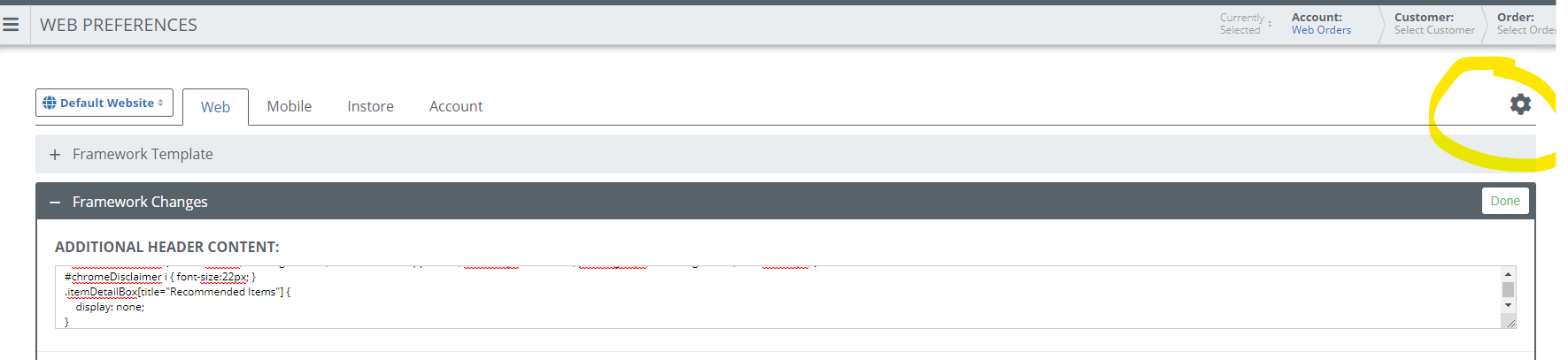
- Open up the Framework Changes section
- Insert the Google Analytics script into the Additional Header Content section. Place the script either at the top ahead of any existing html that might currently exist there, or at the very bottom after all the existing html.
- Important Note: When inserting the script, if there are any curly brackets such as this symbol } that are at the very end of the line, you will need to hit enter so that the curly bracket is on a line by it's self. Like the example above.
- Click done when finished.
Where to install the UA code in web preference
- When logged in navigate to Settings -> Website -> Web preference
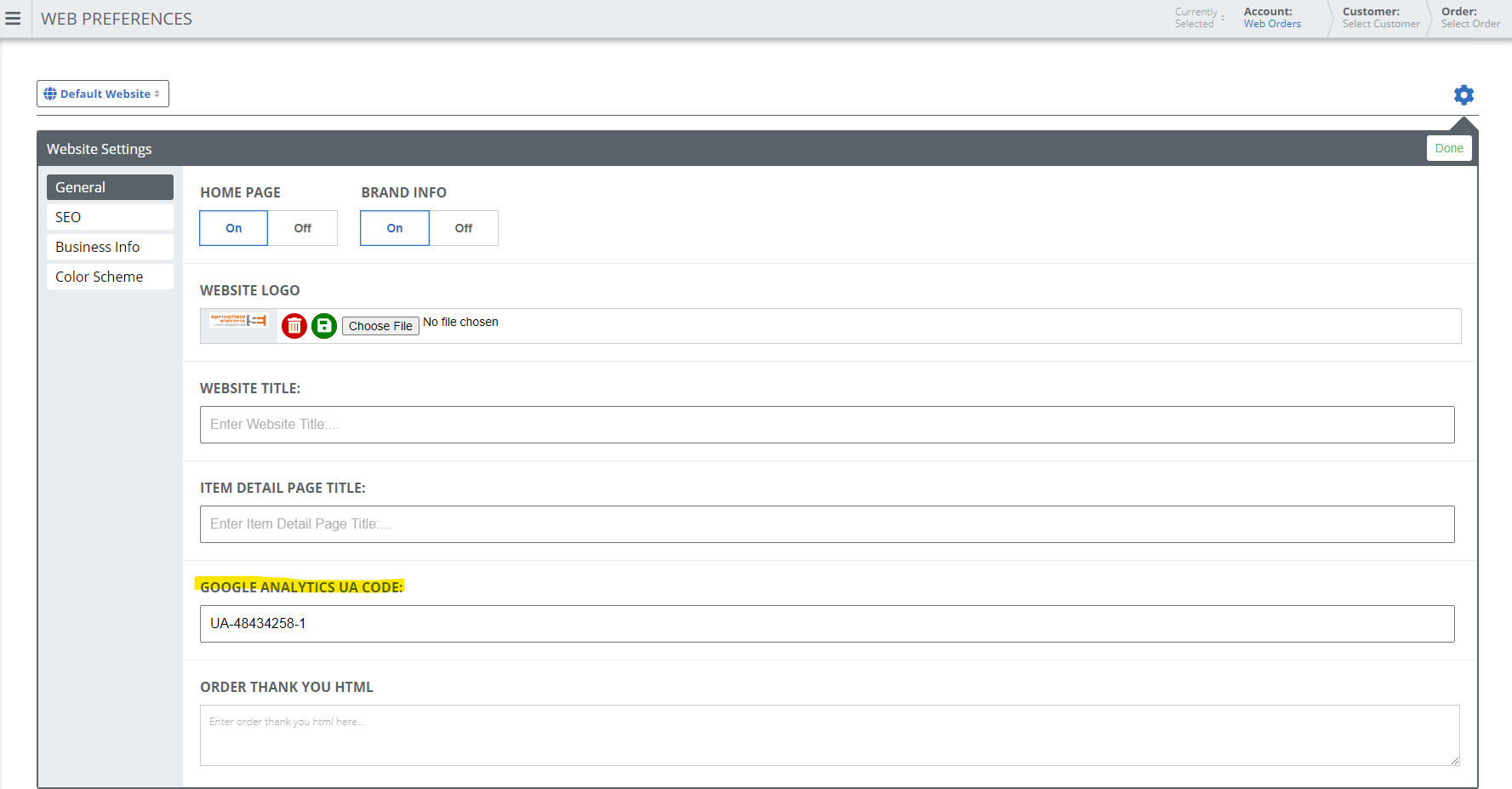
- Click on the gear icon in the upper right.
- Once in the General website settings add in the UA code. Make sure to include the UA in it. Should look like this screenshot.
- Then click done.
Verify that Google Analytics is tracking and set up correctly
Using Google Tag Assistant
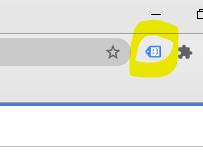
- Install a Google Chrome extension called Google Tag Assistant. If should look like this.
- Once installed go to the website that you added the Google Analytics to.
- Click on the Google Tag Assistant and click Enable.

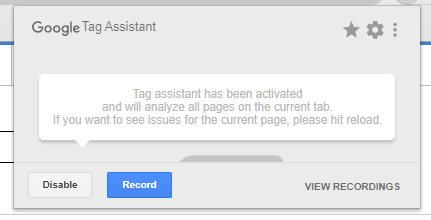
- Then you will see this box come up after click enable
- Reload the page
- If you see the Google Analytics code that you added in web preferences show up in the results then that means it has been set up correctly. If you don't see it there, then you need to go back and ensure that you have it set up properly.
The other Google Analytics number that is on there is the XOLogic Google Analytics that we have on all customers sites.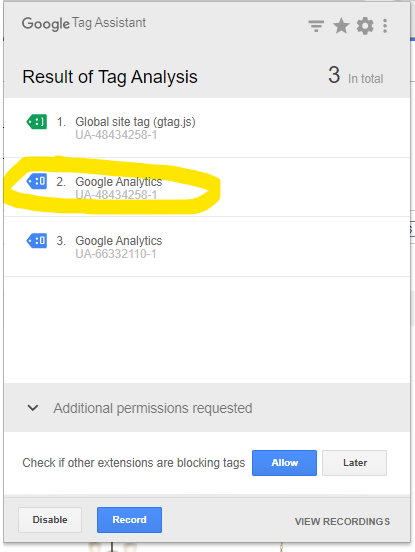
- Here is a link to learn more about Google Tag Assistant
https://support.google.com/tagassistant/answer/2947093?hl=en
View the page source
- When on the website, right click and left click on view page source.
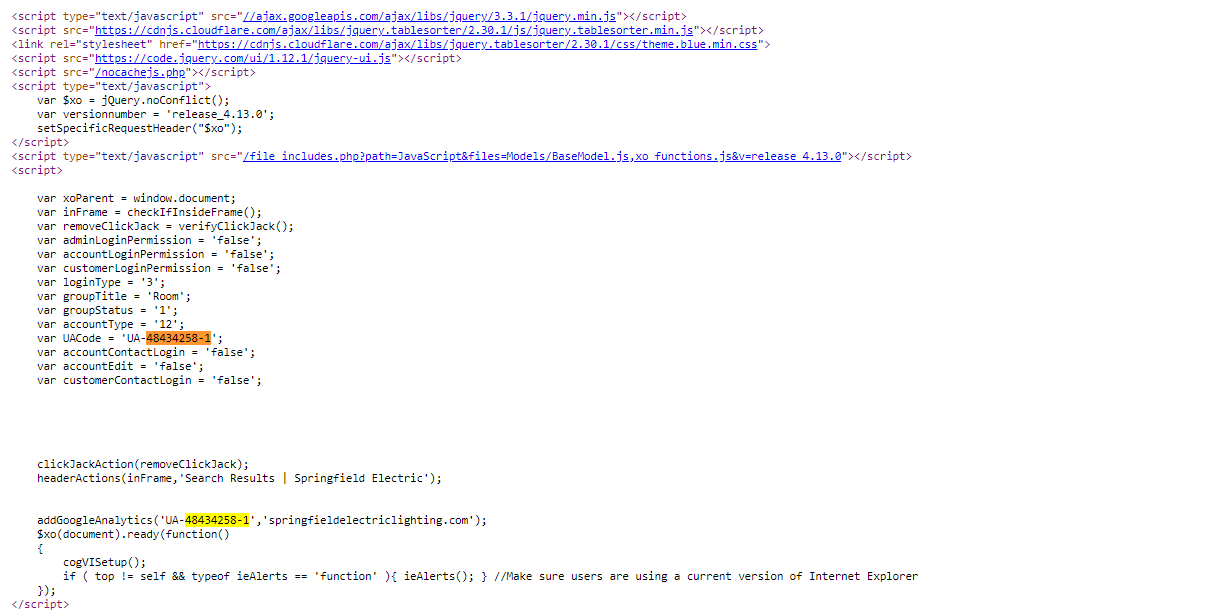
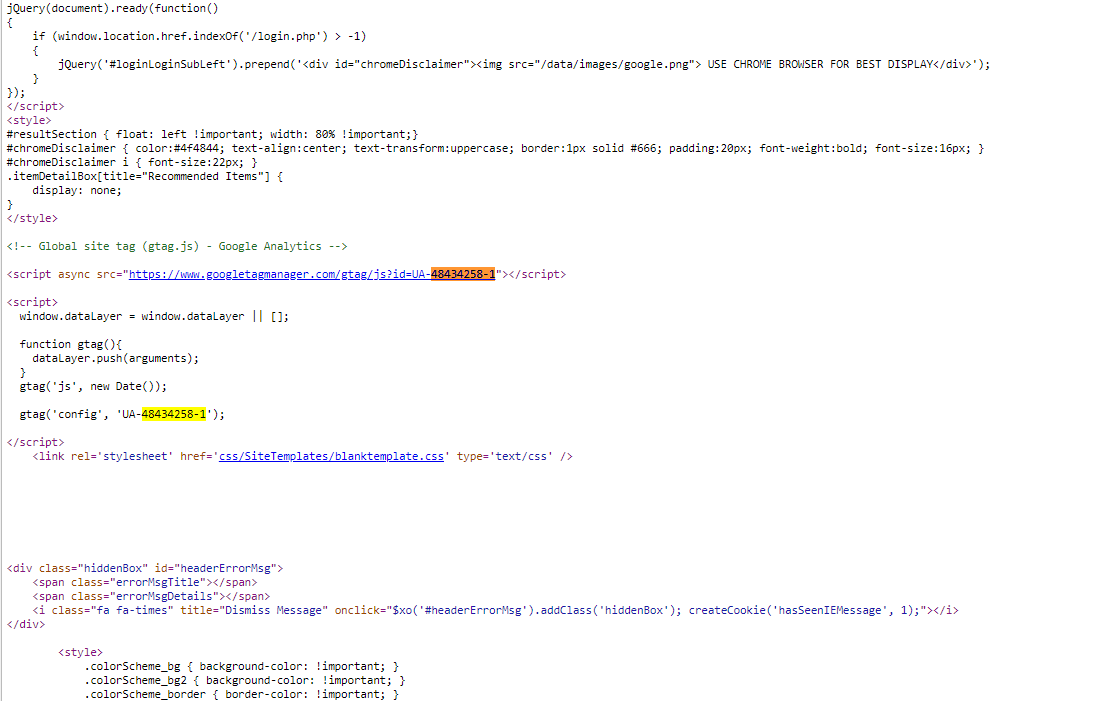
- When viewing the page source use the control F function to search for either the UA code or the script.
- Below are screenshots as to where you should see the script and the UA code.
Check your Real-Time reports in Google Analytics
The Real-Time reports let you see current activity on your site. If these reports have data, then your snippet is collecting data and sending it to Analytics as expected.
The Real-Time Overview and Behavior reports let you see activity for specific pages. If you haven’t added the snippet to all pages on your site, you can check these reports to see whether the snippet is sending data from the pages you have tagged. These reports show activity for only the most active pages, so they don’t provide an exhaustive assessment, but they’re a good signal that your snippet is working correctly.
To see the Real-Time reports:
- Sign in to your Analytics account.
- Navigate to a view in the property to which you added the snippet. If you only recently added the snippet to this property (website), it is likely that there will only be one view.
- Open Reporting.
- Select Real-Time > Overview
Comments
0 comments
Please sign in to leave a comment.