
Through the XOLogic interface you have the ability to set up two different types of flat rate shipping options. One for your B2B Account Shipping (Designers, Builders, etc.) and another for your B2C Web Shipping (web customers).
To set it up go to:
- Settings -> Store -> Settings -> Shipping
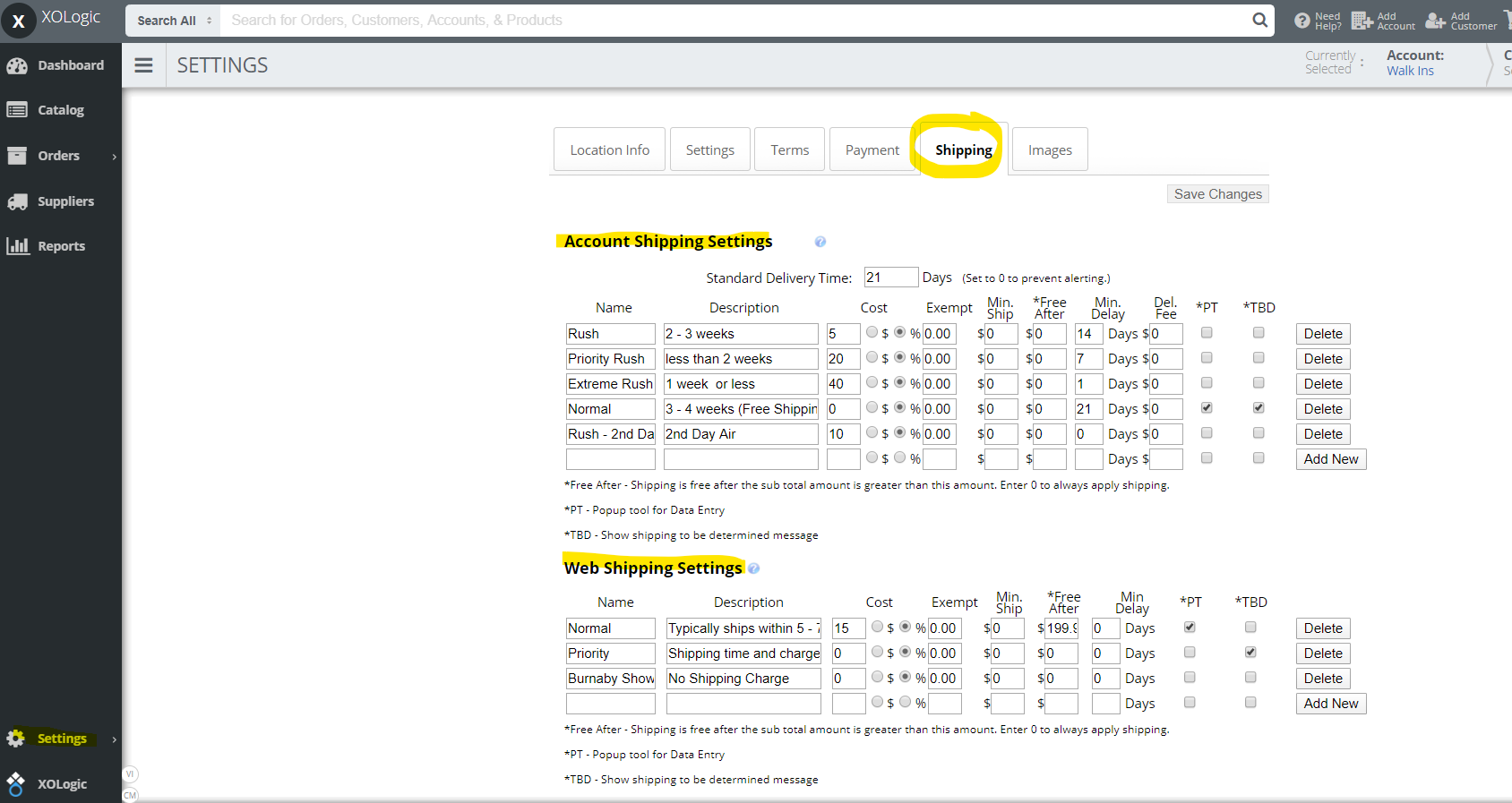
You have the ability to add or delete as many different shipping options as you would like. Let's go through the different settings.
Name/Description: Enter a name and description for this shipping method. You can type anything in these fields with the exception of special characters such as $.
Examples: Pick Up-Available after 5 days.
Shipping-Salesrep will be in contact.
The information that you put in the name and description will show up for a web customer on the cart page, and for admins, sales reps, and your accounts on your estimates and orders.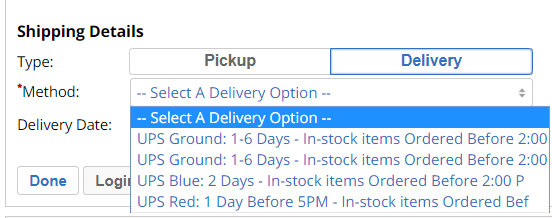
Cost: The cost can be a dollar amount or a percentage of the cost. Simply select either the $ (left) or % (right) and enter in the desired number in the box.
Min. Shipping: If you have set shipping as a percentage of the cost it's a good idea to set a minimum shipping amount. Essentially this will allow you to set the lowest dollar amount you're willing to charge for shipping. Typically this comes into play with inexpensive items such as parts or bulbs. This feature will allow you to make sure that you charge enough for shipping on these smaller items.
Free After: If you wish you can make shipping free after the customer has spent a certain amount. Simply fill in the blank with the minimum dollar amount the customer has to purchase to get free shipping.
Min Delay: Min. Delay is the least amount of time the customer can expect to wait before their order arrives.
Del. Fee: If you wish to put in a delivery fee for your in-store shipping you can do so in this field.
PT: This can be used for data entry. One example is, if your customers have a Fedex or UPS collect number they can enter that number in this area.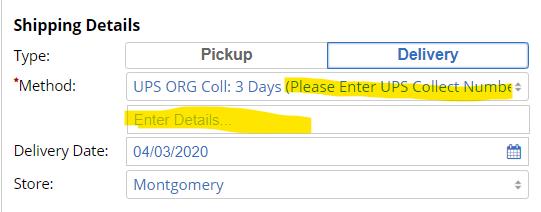
TBD: This option is used if you want to calculate shipping and taxes on the order once you are ready to ship it out. If you have this selected, customers will see this message on the cart page. As an admin, sales rep, or account you will also see this message. This message does not have to be on all of your shipping options. It can be on all, some or none of them.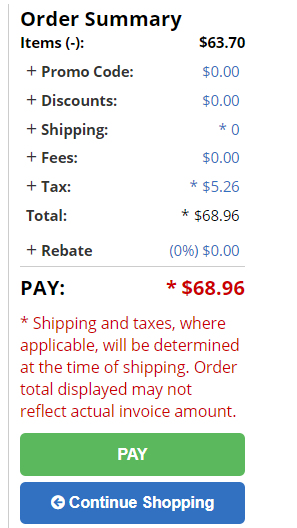
Allow online orders to select in-store order pick: If you navigate to Settings -> Store -> Settings -> Location tab you have this option available to your customers. 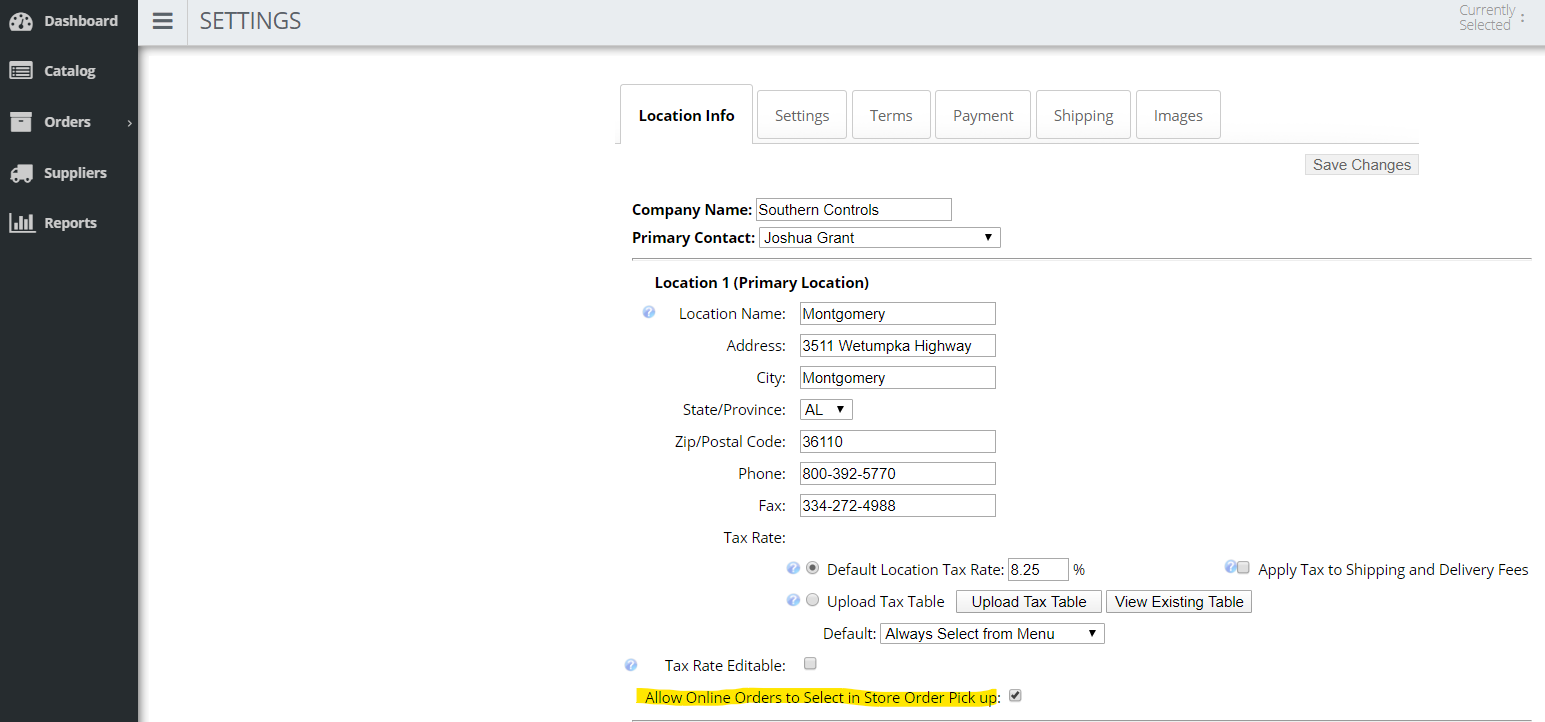
By checking the box you give your online customers this ability. Here is what it looks like on the cart page. If you have multiple locations and want to offer this in each location check the box from the locations tab, then no shipping would be charged.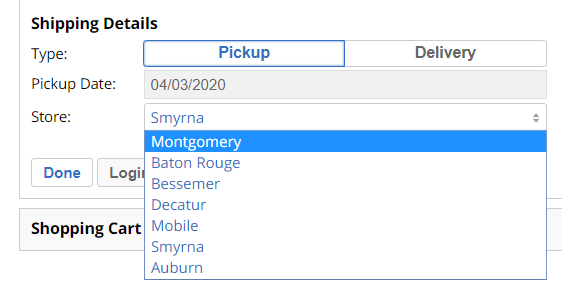
XO Best Practices Tip: Offer free shipping to your customers and promote it on your website. In this day in age and with Amazon offering 1-2 day free shipping, customers expect that you offer free shipping. You can set up an offer like orders over $199 ship free. This will entice your customers to spend more to get free shipping and can be a good way to help off-set your shipping costs.
Comments
0 comments
Please sign in to leave a comment.